
Security of Android phones, as with most Internet-connected devices, is very important but often questionable. When it comes to how security is implemented on Android phones, there is one significant implementation vulnerability. The vulnerability arises because of the option for easier authentication via fingerprint or face scan.
These methods are used to authenticate and unlock Android phones. If someone gets hold of the phone, they could simply physically bring the phone to the owner’s face or press the owner’s finger to the sensor. In such cases, biometric authentication practically loses its meaning because it does not protect the owner from physical interaction.
Nevertheless, because of such risks, Android phones have an Admin Lock mechanism. When active, Admin Lock temporarily disables biometric login until the user enters a password, PIN, or pattern at least once. All of this, however, still relies on a secret that can be easily obtained from the owner.
The main problem is that Admin Lock is triggered automatically only when the system restarts, not during ordinary screen locking. So, if you want to quickly enable this mode without rebooting the phone, an additional solution is needed. One of the most practical options is to use the Tasker app. It is a one-time purchase app that offers a huge range of automation possibilities – including manually triggering Admin Lock.
How to create a function to activate Admin Lock using Tasker:
- Install the Tasker app from the Google Play Store.
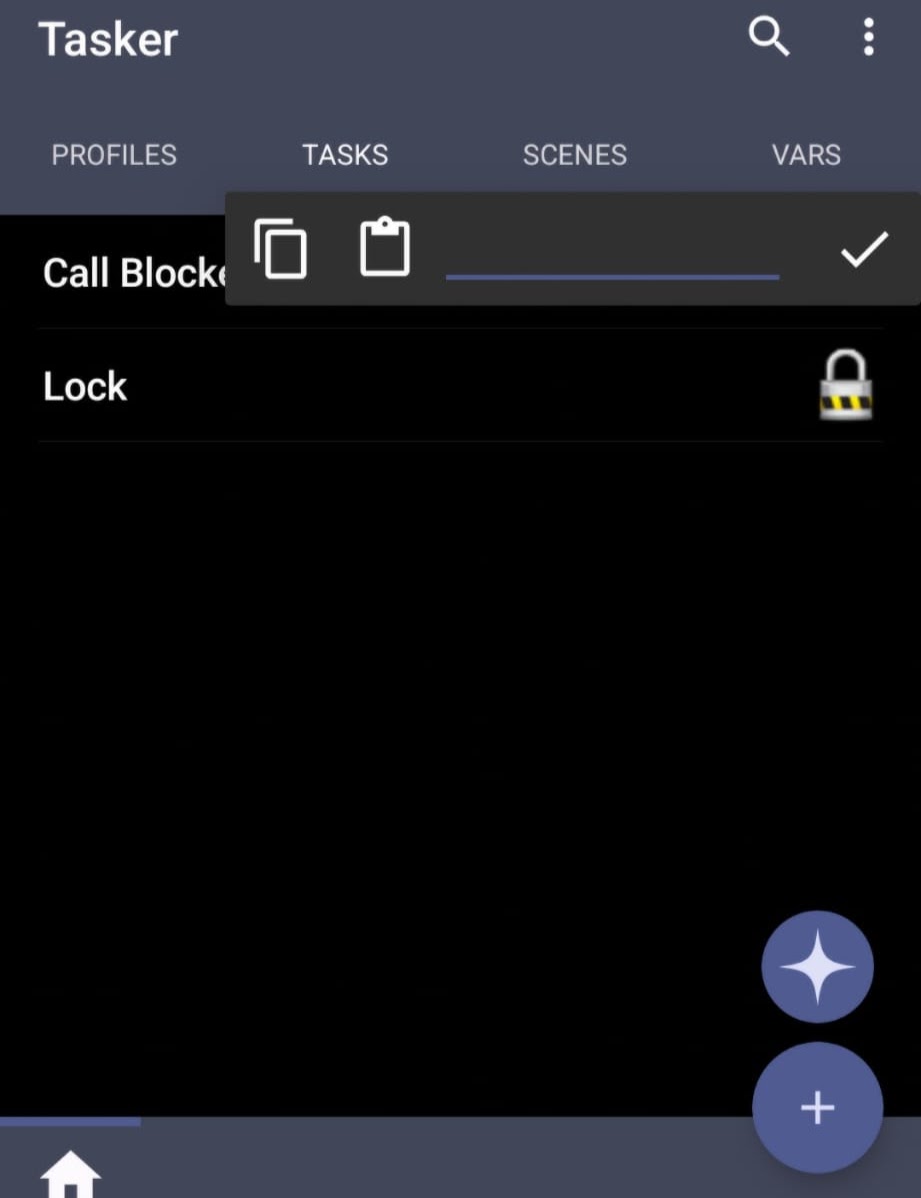
- In Tasker, create a new Task, then choose System → Lock.
- Name the Task, for example “Lock”, and assign it an icon (an icon is needed so you can later create a shortcut).
- It is necessary to grant device administrator privileges so the function works correctly.
- Add the Tasker Task widget to the home screen and select the “Lock” task. This creates a shortcut on the screen that can manually activate Admin Lock when you judge there is a risk of losing the phone.
Besides the shortcut, you can also create a rule that will automatically activate Admin Lock as soon as the phone remains in sleep mode for a longer period. This is useful if you want an additional level of protection without manually running the Task.
Activating Admin Lock mode does not necessarily remove the encryption keys for the data partition from RAM. Full protection of data against physical access is only achieved after restarting the device with “Secure Startup / Require PIN to boot” enabled. Combined with a time limit on the number of PIN entry attempts, brute-force attacks become significantly more difficult.
Co-Author: Petar